
Instead of manually reconstructing your wine purchases months later, use each BuyWinesOnline order confirmation to identify the bottles, then record the wines you actually receive in CellarTracker. This is a manual workflow for 2026, not a claim that the two accounts sync automatically.
- To connect wine orders to cellartracker, use BuyWinesOnline order details as your reference and record received bottles manually.
- Match producer, wine name, region, vintage and bottle size before adding a wine to CellarTracker.
- Keep gift orders and unreceived bottles out of your personal cellar inventory.
- For tasting sets, use the bottles you receive; the set name alone does not identify every wine.
Why this matters
An order tells you what you bought. A cellar record should tell you what you have. Those are different facts when an order contains a gift, a tasting set, or bottles that have not reached you yet. BuyWinesOnline is a useful source for identifying your purchases; CellarTracker is where you maintain your personal bottle record.
The distinction matters more as a collection grows. BuyWinesOnline sells over 5,000 wines, so a search for a familiar producer can return a different vintage or bottling from the one on your order. A 2026 record is only useful if you can recognize the bottle when you want to open it.
There is no verified direct integration or supported automatic order transfer in the information provided here. Use a manual entry process rather than connecting accounts through an unverified service. Keep your order confirmation available as a reference; do not treat it as proof that every listed bottle belongs in your cellar.
Before you start
- Have access to your BuyWinesOnline order confirmation and your CellarTracker account. If you cannot find the order, first check the email address used at checkout.
- Have the delivered bottles, their labels, or a reliable record of what arrived. The order identifies the purchase; the bottle confirms the wine and vintage you received.
- Separate bottles you are keeping from gifts and bottles still in transit. The setup trap is logging the entire order as cellar inventory before checking which bottles you actually own.
You do not need to share an account password between the services to follow this guide. If a separate tool asks for access, establish what it can read and change before granting permission. Nothing in this workflow depends on an outside connector.
Choose your transfer method
There are two sensible ways to organize the manual work. Neither method turns an order into an automatic CellarTracker update.
| Method | Best for | Advantage | Limitation |
|---|---|---|---|
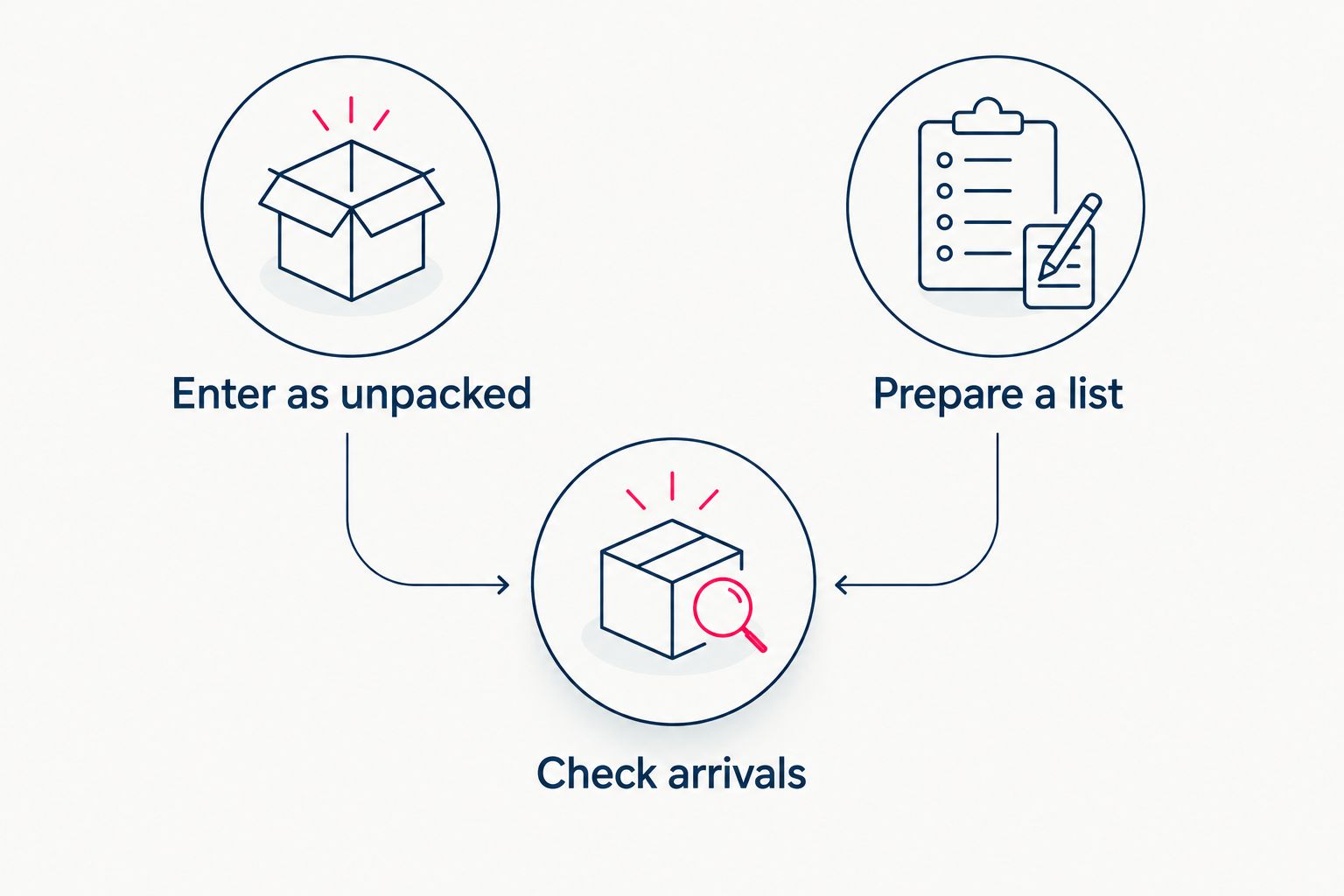
| Enter bottles as you unpack | A small order with clearly labeled bottles | You verify the physical bottle before recording it | It takes attention during unpacking |
| Prepare a list from the order, then check arrivals | A mixed order or tasting set | You can organize names and quantities before searching | The list still needs a bottle-by-bottle arrival check |
Enter bottles as you unpack if accuracy matters more than finishing the task in a single sitting. Use a prepared list when the order is long, but treat that list as a checklist, not as finished inventory. In 2026, the right method is the one that preserves the difference between purchased and received.
The list needs only the details that help you identify a wine: producer, wine name, vintage, region if shown, bottle size, ordered quantity and received quantity. Keep notes about gifts or discrepancies beside the relevant line. This is an organizational aid, not an upload template or a claim that CellarTracker accepts a particular file format.
Prepare your BuyWinesOnline order
- Open the order confirmation for the bottles you want to track. Work from one order at a time so you can resolve differences without mixing purchases.
- Write down each identifiable wine separately. Copy the producer and wine name, then add the vintage and bottle size shown on the order or bottle.
- Mark each line as received, not yet received, given away, or uncertain. Do not add an uncertain line to your cellar merely to finish the list.
- Set aside any tasting set listed under a single set name. You need the individual bottles before you can identify its contents accurately in CellarTracker.
Expected result: you have a short, checkable list of wines you intend to keep, with no gift or unreceived bottle silently counted as inventory.
A product title can provide useful identification details. For instance, an order line for a Cabernet Sauvignon in a 750 ml bottle gives you a size to check as well as a wine name. It does not, by itself, confirm that the bottle has arrived or that the label matches every detail on the order. Read the physical label before committing the record.
If your confirmation lists a mixed tasting set, avoid guessing which wines were packed. The set title describes the purchase, not a complete list of individual cellar entries. Wait until you can see the labels. This prevents a convenient 2026 purchase record from becoming an inaccurate bottle list.
Match each wine in CellarTracker
- Search CellarTracker using the producer and wine name from your checked list. Add the region if the first search leaves several plausible matches.
- Compare the search result with the bottle label. Check the vintage, producer, specific bottling and bottle size before selecting a record.
- If several records look similar, pause and compare the full names rather than choosing the first result. A producer can make distinct wines, and a familiar name does not resolve the vintage.
- If you cannot confidently identify the right wine, leave it on your checklist for later. Do not substitute a close-looking record just to complete the order.
Expected result: every wine you select represents a bottle you can identify, not merely a plausible match for a line in the confirmation.
The order confirmation and label serve different jobs. Use the order to recover what you intended to buy. Use the bottle to settle what you received. That distinction is especially useful when the order title is shortened, a set contains several wines, or your own notes omit part of the wine name.
This guide does not specify clickable CellarTracker controls because no verified interface labels were supplied. Look for the account’s wine search and bottle-recording functions; verify the wine details displayed before saving. Do not mistake a matching producer for a matching bottle.
Record the bottles you keep
- For each confirmed wine, enter the quantity you received and are retaining. A bottle bought for someone else does not belong in your personal cellar count.
- Record purchase context only where your CellarTracker account offers a suitable field. Keep the order confirmation separately if a field does not fit; do not force unrelated details into a wine name.
- Check your saved quantity against the bottles in front of you. Correct the entry before moving to the next wine.
- Repeat the search and recording process for each different wine in the order. If the same wine and vintage appears more than once, check the final bottle count rather than assuming each order line needs a separate wine identity.
Expected result: your 2026 cellar record reflects the bottles you possess. The order remains the reference for what you purchased, while the cellar reflects what you can select to drink or store.
Avoid copying an entire order quantity into a single wine record when the order contains more than one bottling. Likewise, do not combine vintages simply because the producer and wine name match. Those shortcuts make a collection look tidy while making individual bottles harder to find.
Add bottles when an order arrives later
If you place an order before the bottles arrive, use the confirmation to prepare your checklist, then finish the CellarTracker entries after delivery. This variant handles the gap between buying wine and having it in your possession without treating an unreceived bottle as available.
- Keep the new order on a pending list outside your active cellar count.
- When the package arrives, compare each bottle with its order line. Confirm the wine, vintage, size and quantity.
- Enter only the bottles you are keeping. Mark any gift separately on your pending list rather than adding it to your cellar and trying to remember to remove it later.
- Keep unresolved differences on the list until you know what arrived. The expected result is an active cellar count based on received bottles, with no pending order mistaken for drinkable inventory.
For a tasting set, this is the better workflow even if you normally enter purchases immediately. A set name is useful for finding the transaction, but the individual labels determine which wines belong in your CellarTracker account. Do the identification once, when the bottles are available, instead of guessing from the set description in 2026.
Troubleshooting
The search returns several similar wines
Compare the full producer name, bottling, region, vintage and size with the bottle. Do not settle on a result because the grape variety matches. If you still cannot establish which entry is right, leave the bottle off your finished list until you can inspect the label more closely.
The vintage on the order and bottle differs
Check the bottle before saving a cellar entry. Record the wine you actually received, and retain the confirmation to document what the order listed. A vintage is part of the wine’s identity in your collection, not a detail to copy without checking.
The order includes a gift
Remove the gifted bottle from the quantity you plan to record as your own. If you ordered another bottle of the same wine for yourself, count only the one you kept. This avoids creating a cellar record for wine you cannot open.
A tasting set has no individual wines on the order line
Wait for the bottles and read their labels separately. Search for each wine on its own; do not record the tasting set as though it were one wine. If the set is a gift, you do not need to add its contents to your cellar at all.
The cellar count does not match what is on the shelf
Recheck each received quantity and any bottles you already opened or gave away. Then compare the saved entries with the physical bottles. The goal is an accurate present-day count, not a perfect copy of every purchase made in 2026.
Customize your workflow
Keep a consistent routine: retain the order confirmation, check arrivals, match labels, and record only the bottles you own. If you regularly buy mixed cases, prepare your list from the order first; if you buy individual bottles, entering them as you unpack keeps the work close to the physical check.
Use separate notes for wine you plan to give away and wine you plan to keep. That small distinction stops gift shopping from distorting your cellar. When you open a bottle, update your CellarTracker record so the next inventory check starts from a count you can trust.
The retailer and the cellar record answer different questions. BuyWinesOnline tells you what you ordered. CellarTracker helps you keep track of the bottles you have identified and recorded. The connection is your verification step, not an assumed transfer between the accounts.
FAQ
Can I automatically connect wine orders to CellarTracker from BuyWinesOnline?
No automatic connection is verified here. Use your BuyWinesOnline order confirmation to identify purchases, then record the bottles you receive in CellarTracker.
Should I add a wine to CellarTracker before it arrives?
Wait if you want your active cellar count to show bottles you possess. You can prepare a list from the order, then verify and record the bottles after delivery.
What details should I match before recording a bottle?
Match the producer, wine name, bottling, vintage and bottle size against the physical label. An order confirmation helps you locate the purchase but does not replace checking the bottle.
How do I record a BuyWinesOnline tasting set in CellarTracker?
Record the individual wines you receive and keep, not the set name as a single wine. Check each bottle label before choosing a CellarTracker wine record.
What if my CellarTracker search shows several vintages?
Choose the vintage printed on the bottle you received. Do not use the first search result or copy a vintage from the order without checking the label.
Do I add wine I bought as a gift to my cellar?
No, leave a gifted bottle out of your personal cellar inventory. If you also kept bottles of the same wine, record only the quantity you retain.
What should I do if my order and delivered bottles do not match?
Keep the order confirmation and record only bottles you can identify and confirm as received. Leave uncertain lines on your checklist until you resolve the difference.
One last thing
A clean cellar record starts before you search for a wine: decide whether the bottle is yours and whether it has arrived. That check prevents more confusion than copying an order into inventory quickly. In 2026, keep the confirmation as your purchase reference and let the bottles on your shelf determine your cellar count.